As a WordPress site owner, you already know how crucial it is to have a reliable backup and migration solution. Whether you’re making changes to your site or migrating to a new hosting provider, you need a plugin that can handle the job efficiently and with minimal hassle. In this article, we’ll introduce you to the All-in-One WP Migration plugin and explain why it’s the ultimate solution for all your backup and migration needs.
What is All-in-One WP Migration?
All-in-One WP Migration is a WordPress plugin that simplifies the process of backing up and migrating your website. With this plugin, you can easily export your website’s data, including your pages, posts, comments, media files, and plugins, into a single file. This file can then be imported into a new WordPress installation, allowing you to move your entire site to a new server or domain with ease
Benefits of using All-in-One WP Migration
Using All-in-One WP Migration offers many benefits, including:
- Ease of use: The plugin is incredibly user-friendly and requires no technical knowledge.
- Time-saving: It simplifies the process of backing up and migrating your site, saving you valuable time.
- Complete migration: You can move your entire site, including your media files, plugins, and database, with just a few clicks.
- Compatibility: All-in-One WP Migration is compatible with all WordPress themes and plugins.
- Cost-effective: The plugin is available for free on the WordPress plugin repository, with additional features available for purchase.
Getting Started
Downloading and installing All-in-One WP Migration
To get started with All-in-One WP Migration, head to the WordPress plugin repository and search for the plugin. Click the “Install Now” button, and once it’s installed, activate the plugin.
Accessing the plugin’s settings
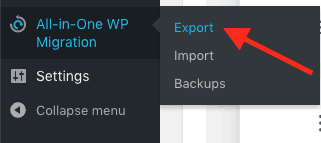
To access the plugin’s settings, click on the “All-in-One WP Migration” tab on the WordPress dashboard.
Exporting data from your website using All-in-One WP Migration
To export your website’s data, click on the “Export” tab and then select “Export To” from the dropdown menu. Choose the file type you want to export to and then click the “Export” button.
Importing Data with All-in-One WP Migration
Preparing your website for data import
Before importing data, it’s essential to make sure that your website is prepared for the migration. This includes:
- Creating a backup of your current site
- Updating your WordPress installation and all plugins
- Removing unnecessary files and plugins
- Disabling caching plugins
Importing data using All-in-One WP Migration
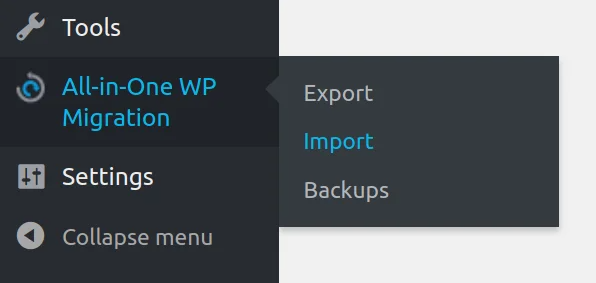
To import data using All-in-One WP Migration, click on the “Import” tab and then select the file you want to import. Click the “Proceed” button, and the plugin will begin importing your data.
Troubleshooting common import errors
If you encounter any errors during the import process, check the plugin’s documentation for troubleshooting tips. You can also reach out to the plugin’s support team for assistance.
Advanced Features of All-in-One WP Migration
Importing large websites with the unlimited extension
One of the standout features of All-in-One WP Migration is the unlimited extension. This feature enables you to import websites of any size, regardless of your hosting provider’s upload limit. With this feature, you can quickly move your website to a new server without worrying about size limitations.
Migrating website data to a different server
All-in-One WP Migration also makes it easy to migrate website data to a new server. You can export your website data to a file, then import it into your new server. This process can save you hours of work and make website migration effortless.
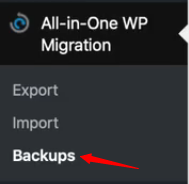
Backing up website data with All-in-One WP Migration
Aside from migration, All-in-One WP Migration also offers an easy and reliable way to back up your website data. You can export your website data to a file, then store it on your computer or in the cloud. With this feature, you can always be sure that your website data is safe and secure.
Using All-in-One WP Migration for Website Development
All-in-One WP Migration can also be useful in website development. You can use it to create a staging environment, which is a clone of your website. This feature enables you to test website changes before going live, making it a great tool for developers.
Using All-in-One WP Migration to deploy websites to clients
If you’re a web developer, All-in-One WP Migration can help you deploy websites to your clients. You can export your website data, then import it into your client’s server. This process is fast and easy, enabling you to focus on other aspects of your work.
All-in-One WP Migration Alternatives
All-in-One WP Migration is not the only backup and migration plugin for WordPress. There are other options available, and it’s essential to compare them to see which one suits your needs best.
Comparison with other popular WordPress migration plugins
Compared to other popular migration plugins like Duplicator and UpdraftPlus, All-in-One WP Migration stands out for its simplicity and ease of use. It requires no technical knowledge, making it perfect for beginners.
Best Practices for Using All-in-One WP Migration
When using All-in-One WP Migration, it’s essential to follow best practices to ensure a smooth backup and migration process.
Keeping your website secure during data migration
One of the most important aspects of data migration is ensuring the security of your website. The All-in-One WP Migration plugin takes this into consideration and offers a variety of features to help keep your site safe during the migration process. For example, the plugin offers a built-in security system that encrypts your data during transfer, making it virtually impossible for anyone to intercept or steal your sensitive information.
Creating regular backups of your website
Regular backups are crucial for maintaining the security and integrity of your website. With All-in-One WP Migration, you can create backups of your site with just a few clicks. The plugin allows you to choose which parts of your site you want to back up, such as your database, files, or themes and plugins. You can even schedule backups to occur automatically, ensuring that your site is always protected against data loss.
Common Issues with All-in-One WP Migration
Troubleshooting common errors during data migration
Data migration can be a tricky process, and it’s not uncommon to run into errors along the way. Fortunately, All-in-One WP Migration offers a comprehensive set of troubleshooting tools to help you identify and resolve common migration errors. From simple issues like file permissions to more complex problems like database connection errors, the plugin has you covered.
Fixing compatibility issues with WordPress themes and plugins
Another potential headache when migrating your WordPress site is dealing with compatibility issues between your current theme and plugins and your new host. All-in-One WP Migration simplifies this process by automatically detecting and resolving compatibility issues, ensuring that your site looks and functions just as it did before the migration.
Conclusion
Overall, we highly recommend All-in-One WP Migration for anyone looking to backup or migrate their WordPress site. Its powerful features and user-friendly interface make it an essential tool for anyone looking to keep their site secure and running smoothly. Give it a try today and experience the benefits for yourself!
As you embark on your website development journey, it’s important to lay a solid foundation. We provide a comprehensive guide on how to install WordPress on GoDaddy, enabling you to set up your website seamlessly. Additionally, we recommend utilizing Smart Line by GoDaddy as a business phone solution to enhance your communication capabilities.